What a virtual piano has to do, and what Pianovera does
A virtual piano has one job: answer instantly, with a sound that makes you want to keep going. Pianovera is an installed app, not a browser tab, and that changes two things. The sound goes straight through the device’s audio engine, so the note starts the moment the key goes down. And the sound bank, Grand Piano 26, is a real piano recorded note by note, sensitive to how hard you press, with an adjustable room ambience: a chord slammed and a chord brushed don’t sound the same.
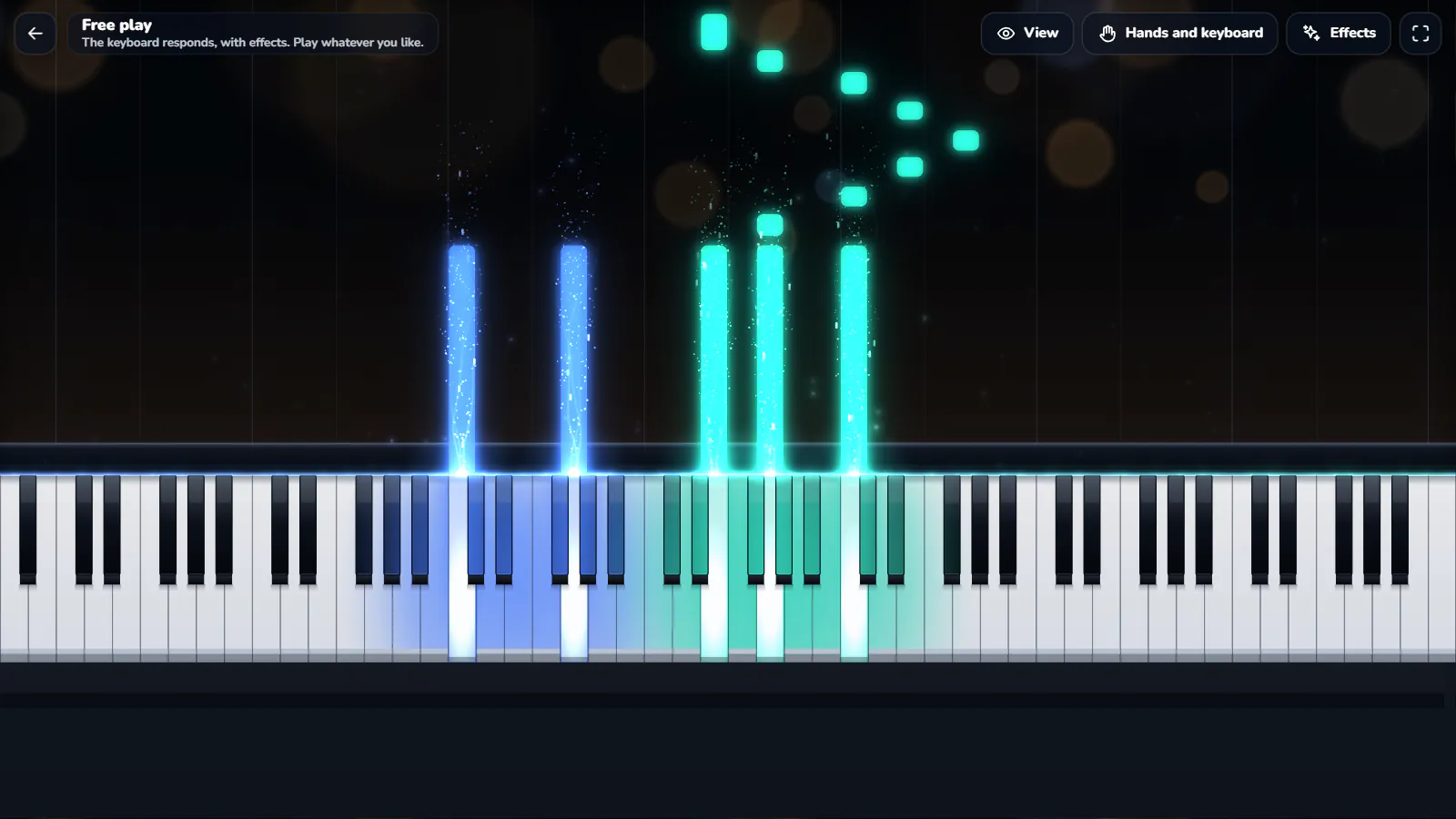
The keyboard fits your screen. On a monitor, all 88 keys of a full piano fit across; on a tablet or a phone, you switch to 61, 49, 37, 25 or 13 keys to keep the keys wide under your fingers. In free play, every note you play lights up in its hand’s colour and rises from the key, like a score writing itself live, with the same particles and halos as during a song. You don’t need it to play, but it makes a scale a lot less austere.
Three ways to play: the mouse on Windows, a finger on Android, or a MIDI keyboard over USB for a real touch. In all three cases nothing goes through the Internet: the piano works on a train, on holiday or in a room with no signal.
Online piano or app: the real difference
A free online piano in a browser is handy to check a note or show someone a chord. Its limits show up as soon as you want to play: latency that changes with the tab and the machine, synthesized or heavily compressed sounds, a reduced keyboard, and often ads around the keys. That’s normal, a web page can’t reach the hardware the way an app can.
Pianovera takes the opposite path. Installed once, the app loads the piano into memory, reads your MIDI files, keeps your progress and settings, and shows no ads while you play. The free version has no time limit and keeps free play, 30 pieces, the first 10 lessons and the 3D hands; Premium opens all 579 pieces and every lesson. See the pricing.
Learning on a virtual piano
The on-screen keyboard isn’t just a toy: it’s the keyboard of Pianovera’s piano lessons. Every lesson shows the staff, lights up the key to play with its finger number, and waits until you play it. The daily challenges and the scale, chord and arpeggio exercises run on it too. For songs, open one of the included classics or one of our free MIDI files: the notes fall toward the keys, left hand in blue, right hand in green, and Wait mode pauses until you play the right one.
3D hands play on the virtual keyboard, fingering included, even in the free version. It’s the most direct way to see where your fingers go without a teacher next to you.
Plugging in a MIDI keyboard
A USB cable is all it takes on Windows; on Android, an OTG adapter plugs the keyboard in over USB. Pianovera recognises the keyboard when you plug it in and follows what you play: the keys light up, the notes rise in free play, and Wait and Scroll modes score your playing on songs. The input is read-only, the app never sends anything to your instrument, and the on-screen virtual piano keyboard stays active alongside it: handy to show a note to a student without letting go of the piano.
There is nothing to configure: the keyboard shows up in Settings with its name, and the size of the on-screen keyboard snaps to your instrument in one click, 61 or 88 keys.
No MIDI keyboard? With a real piano, the microphone recognises your notes in the lessons, in Note reading and in the pieces (the “Wait” and “Learn in sections” modes): the sound is analysed on the device, never recorded or sent.